 - hidden
 - visible
Control the display of Tool Panels and buttons in the program - left-click on the squares next to their names:
- hidden
- visible
Don't forget to configure the size and position of Tool Panels

 Write...
 Save Image
 Restore - configure saving Finds
 Scale
Scale Magnifier - configure the magnification factor (default - 3.0) and magnifying glass size
 Rotation - configure the rotation button:
 WL - configure the list of window width and level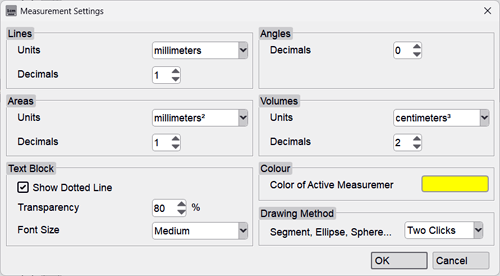
 Density - configure the display of coordinates for the "Density" tool and the analysis area size
 3D Sphere - configure the construction method for the "Sphere" tool.
 Volume by Contours - configure the display of contours
 Volume by Density - configure the interface for building volume by density
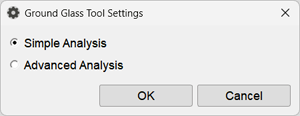
 Ground Glass - configure the launch parameters for the program of the same name
 Calibration - configure the list of typical calibration objects
 Angio Calibration - configure the list of typical calibration objects for angiography