go to Vidar Dicom Viewer page
Configuring Window/Level
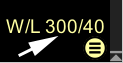
All manipulations with WL values are most conveniently performed by clicking on W / L in the active overlay:
Enter Digital WL Values
Click the "W/L" in the Active Overlay, then "Edit"
or the keyboard combination
+
In the window that appears, specify the WL values and, if necessary, click the "OK" button
Restore WL Values
Click the
Restore button, or the keyboard combination
+
The WL values will be set to those transmitted from the console.
Set the Same WL Values for Different Series
Click the
"Apply to screen" button
Calling the Editor for Preset WL Values (WL Presets)
Click on the
active overlay
with the current WL value on the image, then - on the
Edit list
button
OR
Click in the program menu sequentially:
Help
-
Settings
In the window that appears, click on the
Specialties
tab
In the
CT
section, click the
W / L Presets
button
In any case, the WL presets management window will appear:
Managing Preset WL Values (WL Presets)
Editing a Preset
Clicking the "Edit" button
will open a new window
Set new WL values and click the
OK
button.
Adding (Creating a New) Preset
Clicking the "Add New Preset" button
will open a new window
Set WL values for the new preset and specify its name
Click the
OK
button
Deleting a Preset
Clicking the "Delete" button
will open a new window
Click the
Yes
button to delete the preset
Warning! It will be impossible to restore the preset!
Vidar Dicom Viewer Help 3.0, © 2026
PO Vidar
 +
+ 
 Restore button, or the keyboard combination +
 "Apply to screen" button
 will open a new window
 will open a new window
 will open a new window