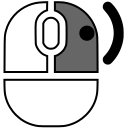
 on the Preview Bar header
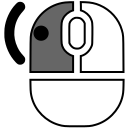 on the "Clear Preview Bar" item on an image in the Preview Bar or on the screen
on the Preview Bar header on the "Clear Preview Bar" item
on the "Clear Preview Bar" item on an image in the Preview Bar or on the screen
on the Preview Bar header on the "Clear Preview Bar" item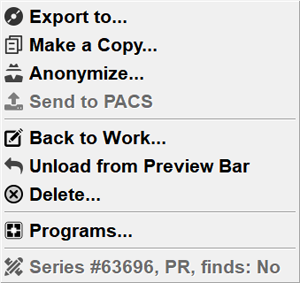
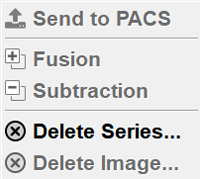
Notes:
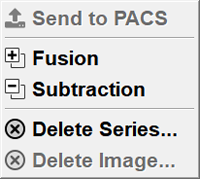
If the series contains only one image, or only the entire series can be deleted, the "Delete image..." item is not displayed
Also, the series menu may contain items for selecting Image Overlay:
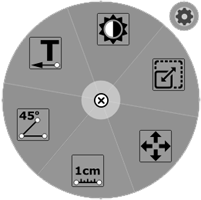
 button in the upper right corner
 in the panel
 in the lower left corner of the window