Mouse control in the program is oriented towards using one main button – the left one
Everywhere in the application, a single click is used
The right button and wheel are used for auxiliary operations
Default Mouse Button Functions:
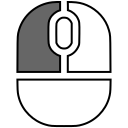
Left Button
The left button can be used to select any tool in the application
The behavior of the left button and mouse wheel can be changed in the Settings
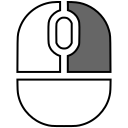
Right Button, hold
Shift
Press and hold (do not release) the right mouse button
When moving the mouse, the image on screen will be shifted
Notes:
When is selected in the toolbar, the left mouse button is used for shifting
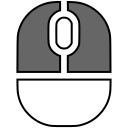
Right and Left Buttons , hold
Rotation
Position the mouse cursor over the image
Press and hold the right, then the left mouse button
Rotate the image by moving the mouse
Release the mouse buttons
Image rotations in the application depend on the selected material:
In two-dimensional images - X-ray, mammography, 2D representation of volumes, etc. - only 2D rotation is available
In the 3D model, only 3D rotation is available
In MPR, two types of rotation are available:
2D rotation (in one plane) - move the mouse cursor to the edge of the image until it changes to
3D rotation (in all planes) - move the mouse cursor closer to the center of the image until it changes to
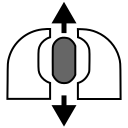
Mouse Wheel
Scrolling
CT, MRI, and specialties with video - Scrolling
X-ray, mammography, and specialties with one image per series - Zoom
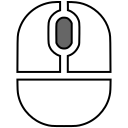
Hold (press and do not release) the mouse wheel, move the mouse
Move the mouse to change the window width/level
Mouse and Keyboard Key
Hold and do not release the key on the keyboard
, then left-click on the image - move the 3D cursor to that point
While holding (press and do not release) the key on the keyboard, regardless of the previously selected tool:
+ Left Button - Window Width/Level
+ Right Button - Zoom In/Out
Application:
The right mouse button, by default, always controls Shifting
Thus, you can, regardless of the selected tool, temporarily and quickly switch to the main image processing functions:
Window Width/Level +
Zoom In/Out (Scale) +
Shift (without holding any keys)
and return to the previously selected tool by releasing the Shift key on the keyboard
See also