go to Vidar Dicom Viewer page
Study Anonymization
Anonymizing a Study While Saving Its Copy in Vidar Dicom Viewer
During anonymization, a copy of the study without patient data will be created
The original study will remain unchanged
Right-click
on the
study header
in the
Preview Bar
, or left-click
the
"More" button in the
study header
Click on the
Anonymize...
item
The
Anonymization
window will open
Confirm the action by clicking the OK button
Click the "Cancel" button to cancel anonymization
The anonymized study will be shown at the very top of the Preview Bar
Additional Anonymization Parameters
Click the "Configure" button in the
lower left corner
of the anonymization window
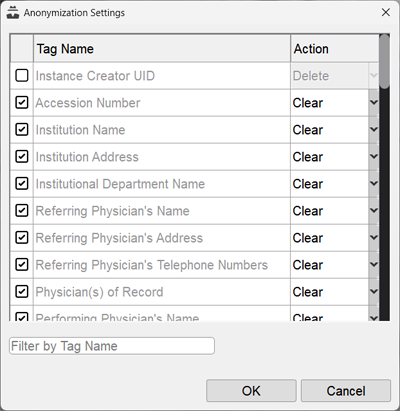
The anonymization configuration window will appear
Click the checkboxes with the left mouse button to check/uncheck the items
Click the "OK" button
The anonymization settings are saved when you exit the program
Click the "OK" button
Anonymizing a Study When Exporting from Vidar Dicom Viewer
Proceed with the export
as usual
until the
Study List for Export
appears:
Left-click the checkbox for the "Anonymize" item
Continue the export
as usual
To specify anonymization parameters, click the "More" button
then - on the "Configure" button
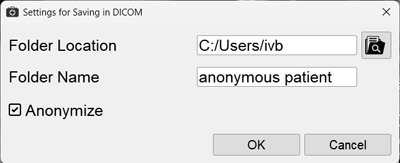
Anonymization When Saving Movies and Other Materials
Check the box "Anonymize"
The data will be anonymized
See also:
Copying and Editing a Study
Vidar Dicom Viewer Help 3.0, © 2026
PO Vidar