(enabled by default) - a mode in which images from different series of the same study are scrolled and transformed synchronously
If the series were acquired with different slice thicknesses, the application will automatically match the corresponding images Different studies are synchronized only manually
Setting Up Automatic Series Synchronization
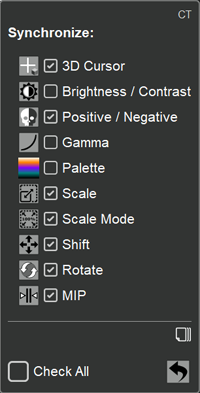
In the study header, click the button
A list will appear
Using mouse clicks on the empty checkboxes next to items
mark the parameters that will change synchronously across all series of the study
Using mouse clicks on the squares with checkmarks (to remove the "checkmark") mark the parameters that will change asynchronously across all series of the study.
If you want to mark all items, click the checkbox next to "Select All" at the bottom of the list
If you want to restore the default synchronization settings, click the button at the bottom of the list
Manual Correction of Automatic Series Synchronization
If a particular series in automatic mode is synchronized incorrectly (the patient moved, or breathed differently), it can be "aligned" with the others
Click the synchronization button in the upper right corner of the study header
All series in the study will temporarily exit the synchronization mode
The button will change to
Scroll through the images in the series until they match each other
Click the synchronization button again
Automatic synchronization will resume taking into account the changes made
The button will change to:
To return the study series to the initial automatic synchronization (cancel the correction) - double-click the chain button
Return All Series to Full Automatic Synchronization

 button at the bottom of the list
 in the upper right corner of the study header


 - disabled,
 - enabled
 key on the keyboard, turns the study synchronization on/off
 button to apply the size to all images on screen