3D cursor is a cross that marks a point that matches the volume in all projections
The 3D cursor works synchronously across different series and studies when series and studies are synchronized
Dragging the 3D cursor causes the images to scroll synchronously in all projections
Enable / Disable 3D Cursor
Click in the toolbar, group "3D", subgroup "3D Navigation":
- disabled
- enabled
Using the 3D Cursor for Manual Synchronization of Different Studies of the Same Patient
Move the 3D cursor to the desired point in one study
Move the 3D cursor to the desired point in another study
Enable manual synchronization
Set a Point for the 3D Cursor on the Image
Move the mouse cursor to the desired point on the image
Hold down the key on the keyboard
Click the left mouse button
3D Lines
3D lines are lines that mark a plane in different projections
3D Lines work synchronously across different series and studies when series and studies are synchronized
Dragging and rotating 3D lines results in synchronized scrolling and rotation of images in all projections
When you hover over a 3D line, the frame of the corresponding projection panel is highlighted in the same color
Enable / Disable 3D Lines
Click in the toolbar, group "3D", subgroup "3D Navigation":
- disabled
- enabled
Note: For MRI, the display of 3D Lines can be disabled
Help - Settings - Specialties - MRI - uncheck the box next to "Show 3D cursor lines in MPR"
Image Navigation Using 3D Lines
Move the mouse cursor over a segment of a 3D line, hold down the left mouse button, and move the mouse
Central part of 3D Lines (red color - sagittal projection, green - coronal, blue - axial) - scrolling through the corresponding projections
Intermediate part of 3D Lines (yellow color) - changing the reconstruction slice thickness
Ends of 3D Lines (white color) - rotating the projections
Restore 3D Cursor and 3D Lines Position
Restore 3D Cursor and 3D Lines Position
Click on the "More" button in the active overlay, then click on the "Restore 3D Cursor State" item
Restore All Image Parameters, Including 3D Cursor and 3D Lines Position
 - disabled
 - enabled
 key on the keyboard
 - disabled
 - enabled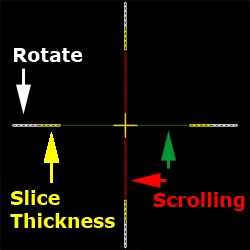
 "More" button in the active overlay, then click on the
  "Restore 3D Cursor State" item

 to hide both the 3D cursor and 3D lines