go to Vidar Dicom Viewer page
Splitting the Screen
The screen can be split to display several studies
A study on screen can be split to display several series
When loading studies from the Preview Bar or Archive, the screen splits automatically
If necessary, the screen can be split manually
Manual Screen Splitting Control
Split the screen into multiple studies and series
Click the button in the Preview Bar header
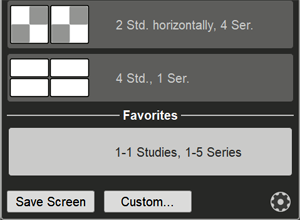
a menu with screen splitting options will appear
Click on the desired splitting option
Split the screen study into any number of series
Click the button "Custom..." in the screen splitting menu, or - in the
tool panel
Enter the desired number of series horizontally and vertically
Click the
Apply
button
Save your custom screen split
Create your screen split as described above
Open the screen splitting menu
Click the "Save screen" button in the splitting menu
In the window that appears, enter a name for the split and press OK
The created split will appear in the list, in the "Favorites" section:
Customize the display of screen splitting buttons
Click the
button in the lower right corner of the splitting menu window

In the window that appears, left-click to uncheck the boxes for the split options you do not plan to use
Click the "Save" button
The
toolbar
may also contain separate buttons for splitting the screen into studies and series:
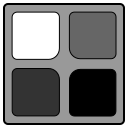
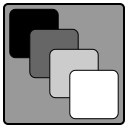
Split the screen into multiple studies (up to 4) or series
Click in the tool panel on
(studies) or
(series)
Buttons with splitting options will appear
Example:
- two studies vertically,
- two series horizontally
Click on the button with the desired split
See also
Arranging Mammographic Images
Vidar Dicom Viewer Help 3.0, © 2026
PO Vidar