 one panel: 1 main panel, which displays the image from the active panel
 three panels: 1 main and 2 auxiliary
 three panels: 3 equivalent MPR projections
 four panels: 3 main MPR projections and one 3D panel
one panel: 1 main panel, which displays the image from the active panel
three panels: 1 main and 2 auxiliary
three panels: 3 equivalent MPR projections
four panels: 3 main MPR projections and one 3D panel
four panels: 3 main MPR projections and one 3D panel
one panel: 1 main panel, which displays the image from the active panel
three panels: 1 main and 2 auxiliary
three panels: 3 equivalent MPR projections
four panels: 3 main MPR projections and one 3D panel
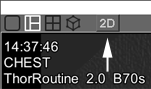
To select the layout, click the button with the desired split in the series header
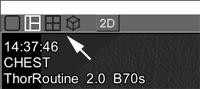
 button in the header
MPR button in the series header
button in the header
MPR button in the series header