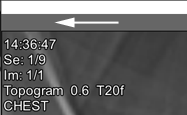
2D images include topograms, patient protocol reports, user-saved two-dimensional screenshots of three-dimensional images, etc., which cannot be represented as MPR and/or volume
This also includes scans that technically cannot be combined into a single volume (for example, scans from different series incorrectly merged by the console operator into one)
In this case, the series header does not contain buttons for switching image viewing modes:
3D Images
3D images are sets of scans combined by the software into volumes
They can be represented as MPR and/or a 3D model
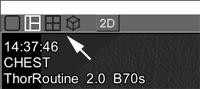
In this case, buttons for switching image views will appear in the series header:
This representation is preferred
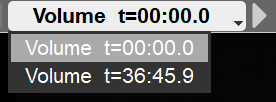
Buttons for switching volumes are located in the series header:
Click the side arrows to switch volumes, or click the central part and select a volume from the list
To scroll through images and volumes with the mouse, select the scrolling tool in the tool panel
Hold down the left mouse button and move the mouse
Moving the mouse up-down will scroll through images within the volume
Left-right will scroll through the volumes themselves
You can also use keyboard buttons and to scroll through the volumes
Representing 3D Images in 2D Mode
If it is necessary to represent a volume as individual scans, click the "2D" button in the series header
In this case, all scans will be displayed in the projection in which they were acquired by the console operator
Returning from 2D Mode to 3D Mode
If the series header in 2D mode contains the button , click it to switch to the volume
Image Presentation in Case of a Single Study with Different Gantry Tilt Angles
If the gantry tilt angle changed during the study (for example, a spine study with different gantry tilt angles, segment by segment), the software will automatically split the study into series
Each series will correspond to one gantry tilt angle
3D representation is only possible within one series
Note:
Per user requests, we have added the current scan number and the total number of scans in the series to the on-screen overlay
If you updated from an older version of the software:
 in the tool panel
 and
and  to scroll through the volumes
 , click it to switch to the volume