The program is designed for analyzing the coronary artery calcium (CAC) score using the Agatston method in computed tomography
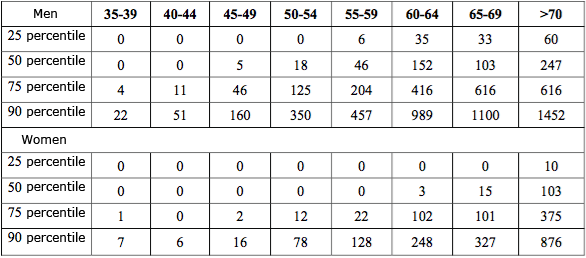
Percentiles are also calculated based on gender and age
The program semi-automatically
calculates the calcium volume for each coronary artery and the total volume
calculates the Agatston score for each coronary artery and the total score
The program automatically
detects coronary calcium (threshold 130 HU)
calculates the percentile Note: For percentile calculation, the patient's age and sex must be specified in the DICOM data
Click on the "Programs" button in the tool panel, "Studies" group
Click on the "Calcium Score" button
The screen will split into 2 panels:
An axial image panel and a control panel with the results table
In the series header, there is a switch - , which allows displaying three standard MPR panels and a control panel with the results table for complex cases

Controlling Automatic Calcium Detection
Automatically detected calcium is colored dark pink
Move the Color Transparency slider (in the series header, to the right of the "Calcium Score" button) to the right
or
Click the "Show/Hide Artery Coloring" button in the control panel
to verify the correctness of the automatic coloring
Control Panel
Click on the button with the abbreviation of the coronary artery name (if you hover the mouse cursor over the button without clicking, the full name will appear)
Outline a fragment of calcification in the selected coronary artery on the axial scan
Actions are similar to the "Closed Pencil" tool of the program
Scroll through the images with the mouse wheel, thus selecting all calcified areas
If a fragment was selected erroneously, use the Eraser tool
Actions are similar to the "Closed Pencil" tool
Repeat the above actions for all coronary arteries
Saving Results
Saving in Vidar Dicom Viewer
The Coronary Calcium Score program is automatically saved upon exit in the Finds list
To display it, click on the "Calcium Score" item in the Finds list in the Preview Bar
Saving the Results Table
If no region of interest (table rows or columns) is selected, all data will be saved
Click the "Copy" button to copy the analysis results to the clipboard for pasting into a standard text document

Click the "Save" button to save the analysis results to a *.csv file for subsequent use in MS Excel

Click the "Print" button to send the analysis results to the print

Click the "Save User Series" button to save the analysis results to a user series (it will be located in the Preview Bar at the end of the study)
Exiting the "Coronary Calcium Score" Program Mode
Click on the "Calcium Score" button in the program header