Click on a button in the tool panel from the first column of the table
or
Press the key on the keyboard from the last column of the table
Button
Function
Mouse
Keyboard
"Marks" Group
Arrow with text
Click at the start of the arrow
Click at the end of the arrow
A text input window will appear
Enter the text
Leave the field empty to place an arrow without text
Click OK to save
Click Cancel to cancel
Text without arrow
Click at the start of the text
A text input window will appear
Enter the text
Click OK to save
Click Cancel to cancel
+
Automatic Spine Labeling
Load an MPR series on screen from the Preview Bar
Click the button
The application will automatically number the vertebrae
If the vertebra numbering is unsatisfactory (usually due to transitional vertebrae or similar anomalies) - manually move the vertebra cursors (crosshairs) to the correct location:
Hover the mouse cursor over a vertebra cursor
Hold the left mouse button
Drag it to the correct vertebra
Release the left mouse button
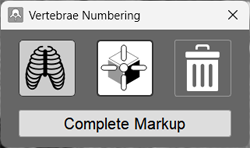
In the service window
click the "Complete Markup" button
The 3D cursor is automatically hidden during labeling
If you need to display it on screen, click the button
For automatic rib labeling, click the button
To delete all labeles, click the button
Manual Numbering of Vertebrae
If the automatic vertebra labeling is incorrect, it can be done manually:
Load an MPR series on screen from the Preview Bar
Click the button
Move the mouse cursor to a "reference" vertebra (typically L5, Th12, C2, etc.)
click in the center of its body on any projection (sagittal is preferred)
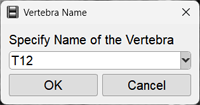
In the window that appears
click the down arrow, scroll the slider through the vertebra names to the required, and click on it
Click the "OK" button
Indicate the other vertebrae of interest by left-clicking in the centers of their bodies (you can move both up and down); names and numbers are assigned automatically
In the service window
click the "Finish Labeling" button
The 3D cursor is automatically hidden during labeling
If you need to display it on screen, click the button
For automatic rib labeling, click the button
To delete all labeling, click the button
Canceling
To cancel a measurement during construction, right-click
To cancel the measurement construction and return to the default tool, press the key on the keyboard