| Button |
Function |
Mouse |
Keyboard |
|
"Segments" Group
|
|
Length |
- Click at the start and end points of the segment
- Hold down the
 key to draw a strictly horizontal or strictly vertical segment key to draw a strictly horizontal or strictly vertical segment
|
 or or 
|
|
3D Segment, available only in 3D modes |
- Click at the start point of the segment, scroll the images with the mouse wheel, click at the end point of the segment
|
For details, see 3D Measurements
|
|
"Angles" Group
|
|
Angle |
|

|
|
Open Angle, Cobb Angle |
- Click at the start and end points of one side of the angle
- Click at the start and end points of the other side of the angle
|
+
|
|
"Curves" Group
|
|
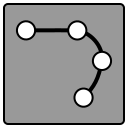
Curve |
- Click on the points of the curve, double-click at the end of the curve
- Right-click
 on the constructed curve to add a point inside it on the constructed curve to add a point inside it
- To add a point at the beginning or end of the curve, use the "More" item
 (see Measurement Manipulations) (see Measurement Manipulations)
- Click on the first point to close the curve
|
|
|
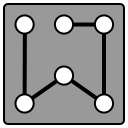
Polyline |
- Click on the vertices of the polygon
- Click on the first vertex to close the polygon
|
|
|
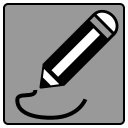
Pencil, or Pen for freehand drawing |
- Click at the starting point
- Move the mouse to draw a freehand curve
- Click at the end point
|
|
|
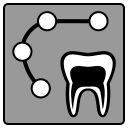
Ortho, available only in 3D modes |
- Click on the points of the curve, double-click at the end of the curve
|
For details, see "Ortho" Program |
|
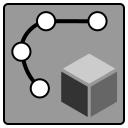
3D Curve, available only in 3D modes |
- Click on the points of the curve, scrolling the images with the mouse wheel, double-click at the end of the curve
- Right-click on the constructed curve to add a point inside it
- To add a point at the beginning or end of the curve, use the "More" item (see Measurement Manipulations)
|
For details, see 3D Measurements |
 key on the keyboard