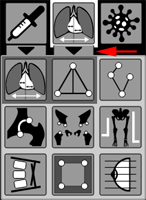
Located in the X-Ray button group within the Measurements toolbar
Allows darkening the entire image except for a selected rectangular area
Creation and editing are similar to the Rectangle tool
Cancel Shutter creation during the process - right-click
In the upper right corner, click the  button
In the appeared menu, by clicking on the corresponding item, save the selected image fragment in DICOM format (to a user series) or as an image file (in JPG format)
 icon appears inside the rectangle and click on it with the left mouse button