The list of printers in the application, both film (DICOM-compatible) and paper printers
Allows add a printer, modify settings, hide a printer without deleting its settings, and set the order of printers in the list
Hide / Show printer in the print window - Uncheck or check the box next to the printer name
The printer is not deleted from the list in Settings
Configure printer - Click the gear icon or double-click the printer name
Remove printer from the list - Click the cross icon next to the printer name
This action permanently deletes the printer from the application
To change the order of printers in the print window list:
select the printer (click on its name)
use the Up and Down buttons to move it to the desired position
To add a new printer, click the Add Printer button
The Printer Configuration dialog will appear
Printer Configuration
This dialog appears when adding a new printer or modifying settings of an existing one
Select the printer type: Film or Paper
Film Printer
Enter the printer name
Specify the printer's IP Address and Port
Specify the printer's AETITLE
Select the film format
Click the Check Connection button to verify communication with the printer
If necessary, change the Vidar Dicom Viewer AETitle
If the printer uses multiple film trays, create a separate printer name for each film format
The printer settings will remain the same except for the film format and printer name
For example, create printers "Film 8x10" and "Film 14x17"
To set up your film printer, please contact your network administrator and PACS system administrator
Paper Printer
Enter the printer name displayed to the user in the printer list
Select the printer from the list
The printer must be installed on the system
Select the paper sheet size
Select the print resolution in DPI
When working with some large-format printers (A3 and larger), the system print service may run out of memory
In this case, reduce the Resolution (DPI) for printing
Save the printer settings by clicking OK
Default Print Settings
Apply to all printer types
Parameters can be changed directly in the print window during operation
Overlay
Sets the default overlay display mode and measurement font on printed sheets
on all images - prints overlay on all images of the sheet
on the first image - prints overlay only on the first image of the sheet
no overlay - do not print overlay
Font
Allows you to set the font and font size for overlays and measurements, as well as the thickness of measurement lines for printing
Default Sheet Layout
Similar to sheet layout by specialty
Opens the corresponding settings window from the "Specialties" tab
Can be changed during operation
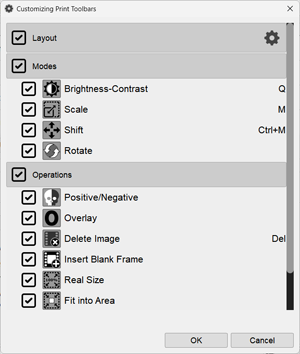
Configure Toolbar (Toolbars buttons)
Sets which buttons will be shown in the Print Window
Uncheck any buttons or panels you don't need
Layout Buttons
Sets which layout buttons will be displayed in the Print Window panel
Click the gear next to the Layout item in the Print Toolbar Configuration
In the window that appears, check the most frequently used sheets layouts with mouse clicks and remove unnecessary ones:
Sheet Title (Header)
Text information can be output to a separate sheet header
Check the box next to the "Sheet Title" button
Click the "Sheet Title" button and create a Default Header
Simple HTML formatting is supported in the header
For header examples using HTML - click the Show Templates button
Before printing, you can edit the header by clicking on it
You can also temporarily hide the header and adjust its height, see Printing a Study
If the header is used not often, do not check the Header box, but set it directly from the print window
Text Items at the Bottom of the Print Settings Window:
Close Print Window After Printing a Sheet
By default, after sending a sheet to the printer, the print window closes
If printing multiple copies of a sheet frequently, or if the connection with the printer is unstable, uncheck this box
Confirmation for Closing Print Window
Controls the display of a window when closing the print window
Allows saving the formatted sheet BEFORE printing to the printer
Enabled by default
Uncheck this box:
To prevent unnecessary messages from appearing
If you are confident in your actions
Note: After clicking the Print button, you will always be prompted to close the print window
Allows to check the success of printing
Confirmation For Deleting Images
Shows a confirmation prompt when deleting an image
Enabled by default
Allow Minimizing Print Window to the Toolbar
Allows "collapsing" the print window into a thumbnail on the toolbar, activating the collapse button
Enabled by default
Minimized on Start Print
Available only if the previous item (Allow Minimizing..) is active
When sending the first image to the print window, it immediately collapses into a thumbnail on the toolbar
Recommended Print Setup Order
Turn on the printers
Some printers may take over 10 minutes to start
Film printers are best turned on before the main equipment
Start Vidar Dicom Viewer
Open Help - Settings - Print tab
Edit/add the necessary printers, test the connection
Arrange printers in the list in the desired order, hide unnecessary ones
Place the most needed printer (and film format) first in the list
 next to the printer name
 gear icon or double-click the printer name
 cross icon next to the printer name
 on all images - prints overlay on all images of the sheet
 on the first image - prints overlay only on the first image of the sheet
 no overlay - do not print overlay