- Press and hold the left mouse button over the images
- Move the mouse up and down to scroll through the images
- In 3D mode - rotates the 3D model
Zoom/Shift
Around the mouse cursor-
Zoom:
- Press and hold the left mouse button
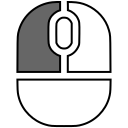 over the images
 - Move the mouse up and down to change the zoom level
- Press and hold the right mouse button
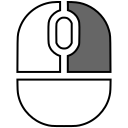 over the images
 - Move the mouse left-right and up-down to Shift the images
Shift:

With any tool selected, hold down the Shift key on the keyboard and the right mouse button  + to temporarily switch to the "Zoom" tool. Move the mouse to zoom in/out.
Release the Shift key and the right mouse button to return to the previously selected tool.
- Press and hold the left mouse button over the images
- Move the mouse to Shift the images
 +
+

Configuration

- Press and hold the left mouse button over the image
- Move the mouse to rotate the image
+ 
- Press and hold the left mouse button over the image
- Move the mouse to rotate the image in three dementions
+
excluding 3D model
- The mouse cursor must be on the periphery of the image and look like

- Press and hold the left mouse button over the image
- Move the mouse to rotate the MPR in the screen plane
- The mouse cursor must be in the central parts of the image and look like

- Press and hold the left mouse button over the image
- Move the mouse to rotate the MPR in all planes
+

 +
+
 +
+

 +
+