 in the Tool Panel, the "Studies" group
one - endoscopic mode (endo-mode)
in the Tool Panel, the "Studies" group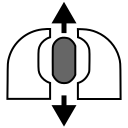 moves the camera forward/backward
 key on the keyboard
 and rotating the mouse stops the camera and allows for rotation inside the tracheal or bronchial lumen
 / Down
  arrows allow forward/backward movement
 / Left
  arrows allow rotating the camera in the horizontal plane
 button in the series header)
 in the series header rotates the MPR views along the camera's trajectory
 button in the series header, or click the "Virtual Bronchoscopy" button in the series header and then select "Save Resulting Series" from the dropdown menu
 in the "Processing" Block - "Scroll" group of the Tool Panel